Table of Contents
Creating a bootable USB drive is one of the easiest ways to install, reinstall or repair Windows 11. A bootable USB contains the Windows installation files and allows you to start your computer directly from the USB drive.
Microsoft provides an official utility called the Media Creation Tool that downloads the latest version of Windows 11 and automatically creates a bootable USB drive. This method is simple, safe and recommended for most users.
Requirements
Before you begin, make sure you have:
- An empty/formatted USB flash drive (8 GB or larger).
- A stable internet connection.
- Windows Media Creation Tool installed on your Windows PC.
- Administrator privileges on your computer.
Note: The Media Creation Tool will erase all data on the selected USB drive.
Getting Things Ready
Step 1: Download and Install Media Creation Tool
- Go to the Download Link.
- The Provided link will download a RAR file, extract it using WinRAR.
Step 2: Insert Your USB Drive
- Connect your USB flash drive to the computer.
- Ensure the drive has at least 8 GB of available storage.
- Back up any important files stored on the USB drive.
How to Create a Bootable USB Using Media Creation Tool
Step 1: Launch the Tool
- Right click the downloaded Media Creation Tool.
- Select Run as Administrator.
- Accept Microsoft’s license terms.
Step 2: Choose Installation Media
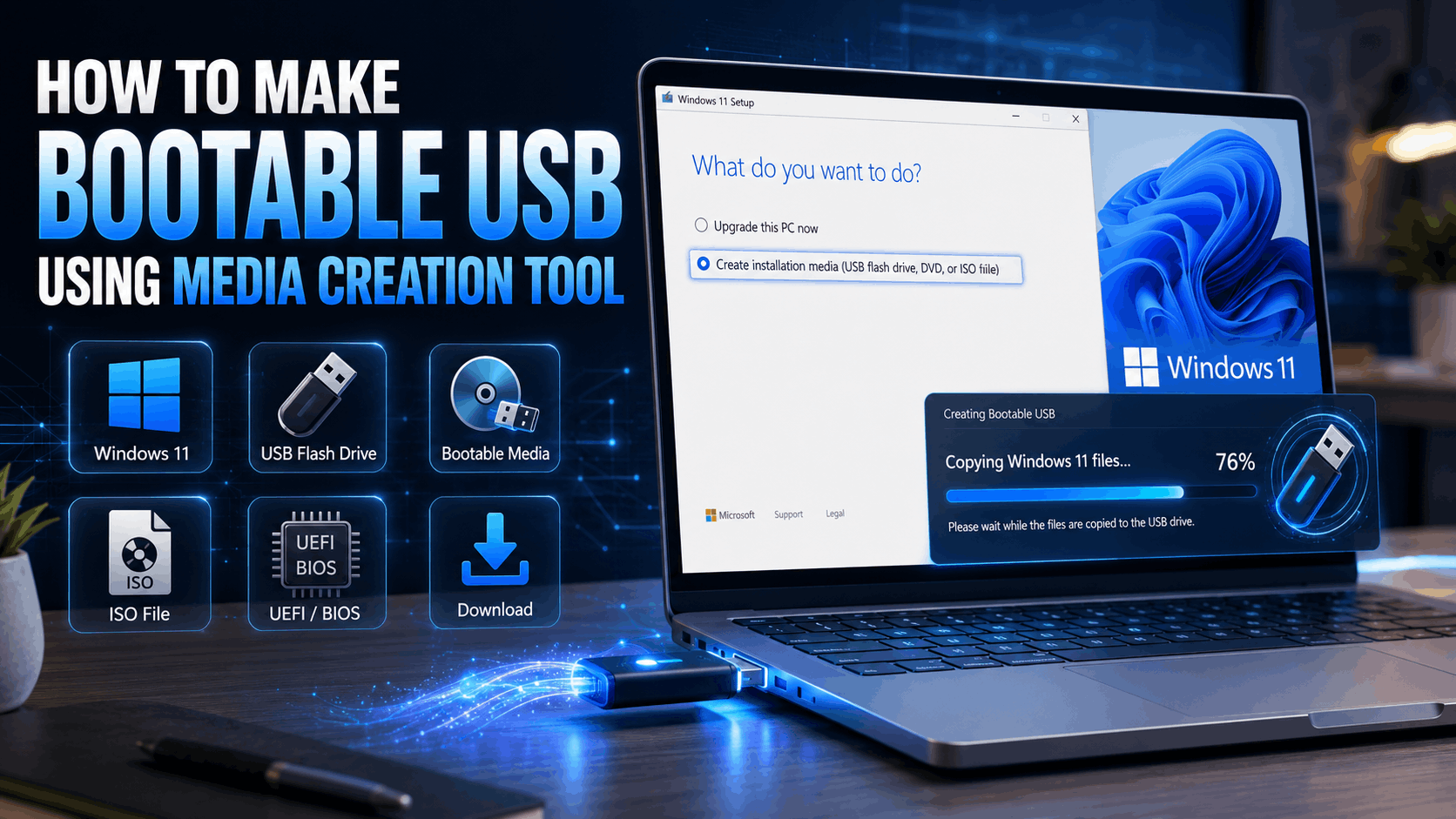
- Select Create installation media (USB flash drive, DVD or ISO file) for another PC.
- Click Next.
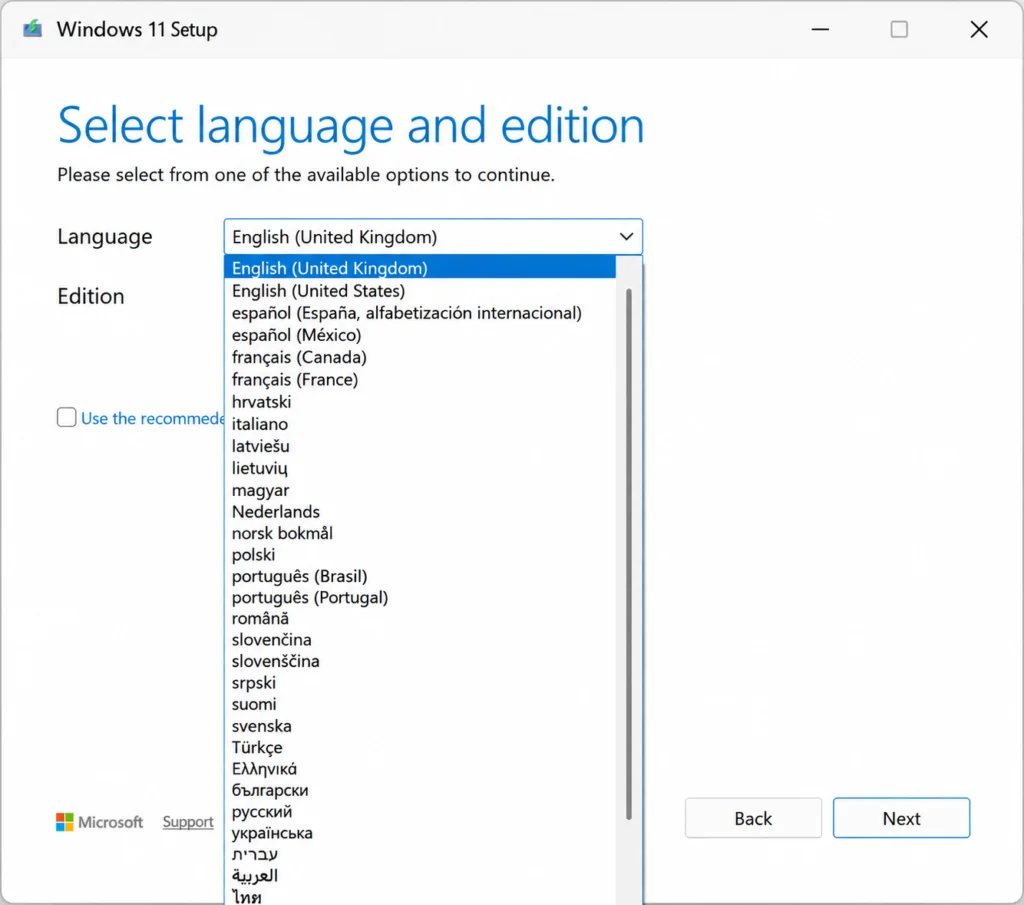
Step 3: Select Language and Edition
- Choose your preferred:
- Language
- Windows Edition
- Architecture (64-bit recommended)
- Click Next.
You can leave Use the recommended options for this PC checked if you're creating the USB for the same computer.
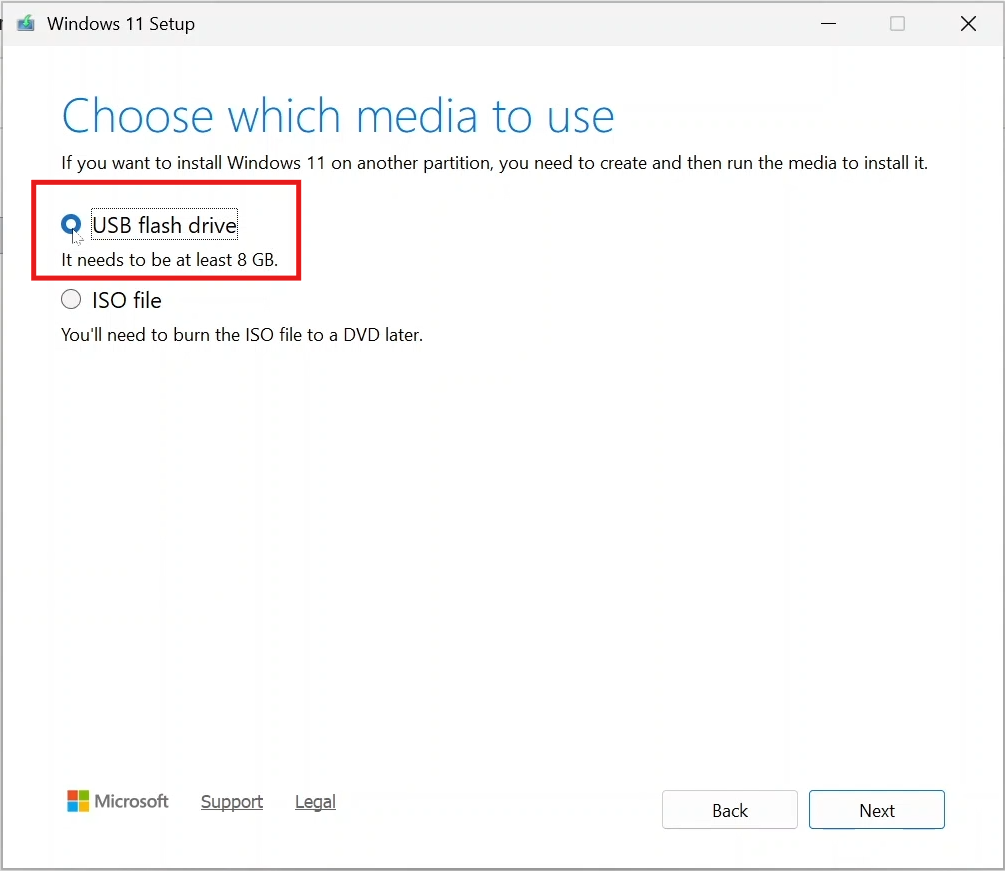
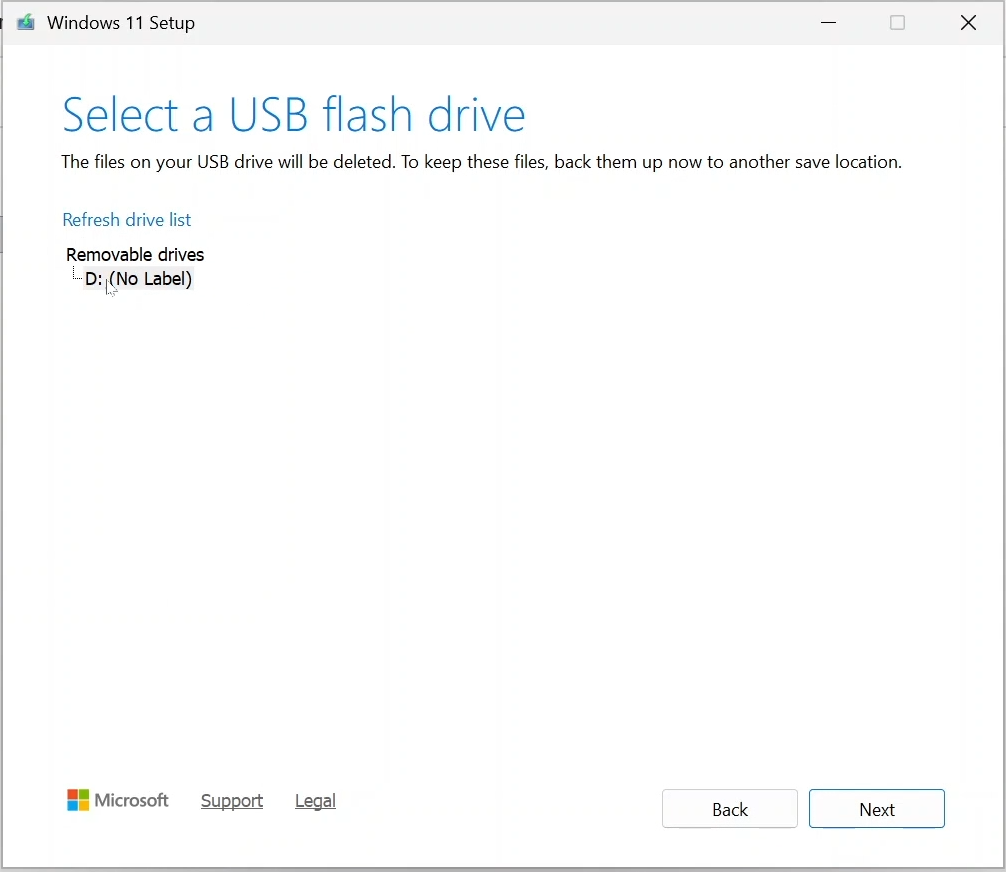
Step 4: Select USB Flash Drive
- Choose USB Flash Drive.
- Click Next.
- Select your USB drive from the list.
- Click Next again.
Step 5: Download and Create the Bootable USB
The Media Creation Tool will:
- Download the latest Windows 11 files from Microsoft.
- Format the USB drive.
- Create a bootable Windows installation USB automatically.
The process may take 15–45 minutes depending on your internet speed and USB drive performance.
Step 6: Finish the Process
- Once the tool displays “Your USB flash drive is ready”, click Finish.
- Congratulations! Your Windows 11 bootable USB drive is ready to use.
Tips for Ensuring Your Bootable USB Works
Use a High Quality USB Drive
For the best results, always use a reliable USB flash drive from a trusted manufacturer. A USB 3.0 or newer drive is recommended because it offers faster read and write speeds which can significantly reduce the time required to create the bootable USB and install Windows. While an 8 GB drive is the minimum requirement a 16 GB or larger USB drive is recommended for better compatibility and future use.
Keep Your Internet Connection Stable
The Windows Media Creation Tool downloads the latest Windows installation files directly from Microsoft’s servers before creating the bootable USB drive. Because of this a stable and uninterrupted internet connection is important throughout the process. If your connection drops during the download the process may fail, become corrupted or require you to start over from the beginning.
Use the Correct USB Drive
Before clicking the Start or Next button carefully verify that you have selected the correct USB flash drive. The Media Creation Tool will automatically format the selected drive and erase all existing data stored on it. If you have multiple USB drives or external storage devices connected to your computer, double check the drive name and storage capacity to avoid accidentally deleting important files.
Boot from USB Properly
After creating the bootable USB drive, you must boot your computer from the USB device to begin the Windows installation process. Restart your computer and open the Boot Menu by pressing the appropriate key during startup, such as F12, F9, Esc, Del or another key depending on your computer manufacturer. Once the Boot Menu appears, select the USB drive from the list of available boot devices and proceed with the installation.
Enable UEFI Boot
Most modern computers use UEFI firmware instead of the older Legacy BIOS system. For the best compatibility and performance, ensure that UEFI Boot is enabled in your system’s BIOS or firmware settings before attempting to install Windows. If your computer is configured for UEFI mode but Secure Boot or boot settings are incorrectly configured, the USB may fail to boot properly. Reviewing your firmware settings beforehand can help prevent installation issues.
Advantages of Using Media Creation Tool
Official Microsoft Utility
The Media Creation Tool is developed and maintained by Microsoft, making it one of the safest methods for creating Windows installation media.
Always Downloads the Latest Version
Unlike offline ISO files, the tool automatically downloads the most recent Windows 11 release available.
Beginner Friendly
No technical knowledge is required. The tool handles formatting, downloading and bootable USB creation automatically.
No ISO Management Needed
You don’t need to manually download, mount or burn ISO files. Everything is done within the application.
Alternative Tools
Rufus
Rufus is a popular utility that allows users to create bootable USB drives using downloaded ISO files. It offers more customization options and works offline.
PowerISO
PowerISO can create bootable USB drives from ISO images and is useful for users who already have Windows installation files stored locally.
Conclusion
The Windows Media Creation Tool is the easiest and most reliable way to create a Windows 11 bootable USB drive. It automatically downloads the latest Windows files and prepares the USB without requiring additional software or ISO files.
If you want a simple, official solution, Media Creation Tool is the best choice. However, if you prefer offline installation or advanced customization tools like Rufus and PowerISO are excellent alternatives.
If you want to Download Windows Media Creation Tool visit: @Microsoft
Download Links
Note: Password for all files is thelearnerz.com
By clicking this button your download will start automatically, after the countdown. Please click only once and wait for the application to begin downloading.
Download