Table of Contents
Internet Download Manager (IDM) is one of the most popular download managers available for Windows. It is designed to increase download speeds, resume interrupted or broken downloads and help users organize downloaded files more efficiently. IDM also supports scheduling downloads, downloading videos from many websites and managing large files with greater reliability than a standard web browser.
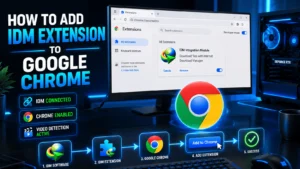
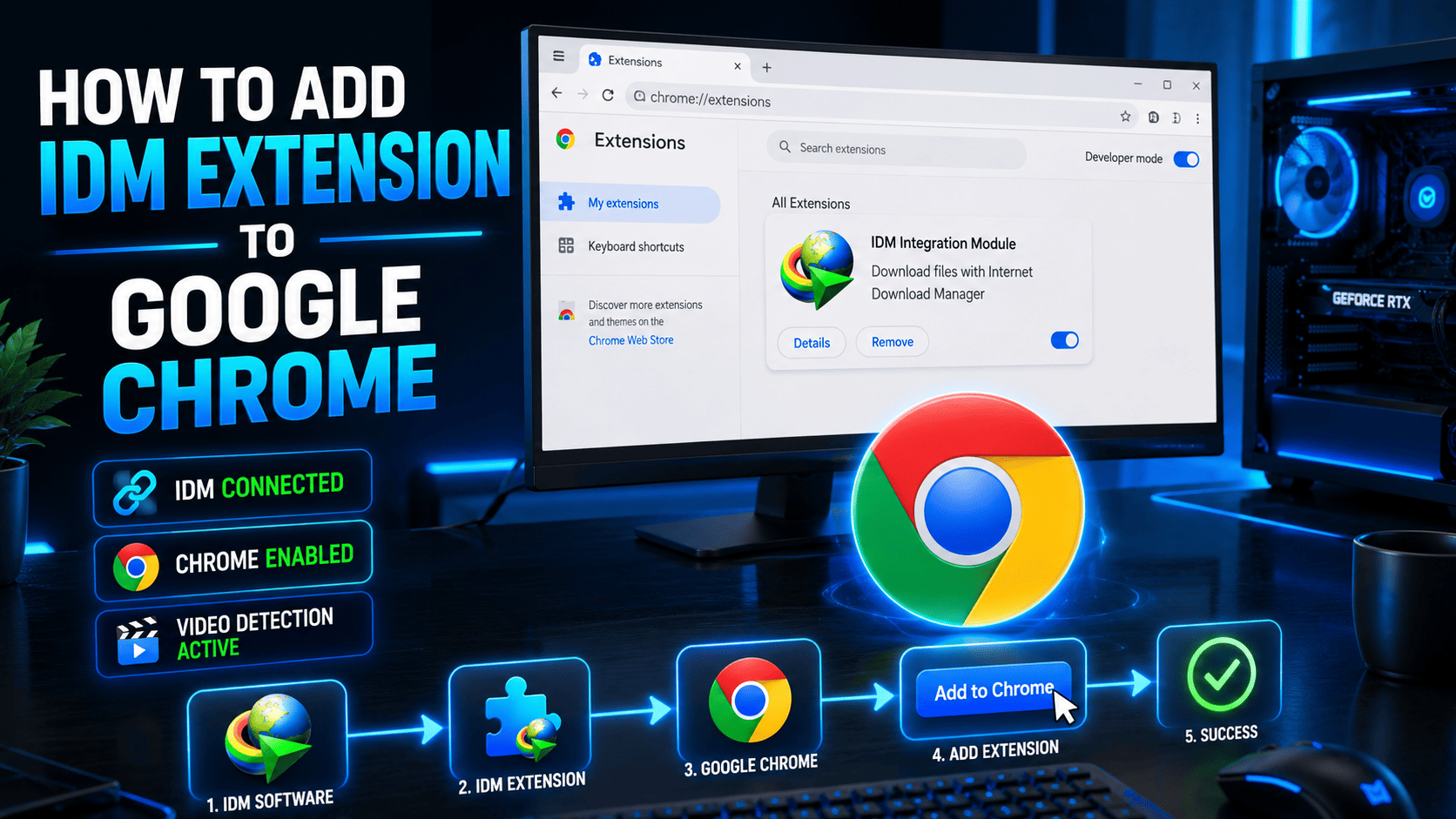
To make IDM work properly with Google Chrome, you need to install the IDM Integration Module extension and enable browser integration within IDM. Once configured correctly IDM can automatically capture download links from Chrome and handle them using its advanced download engine.
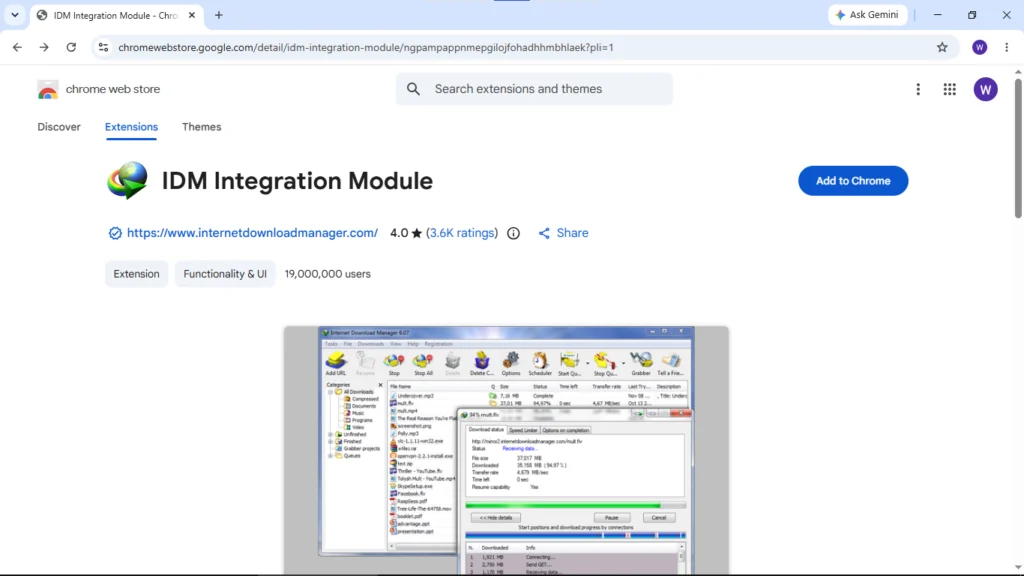
The easiest and safest way to set up IDM with Chrome is to install the IDM Integration Module directly from the Chrome Web Store. This method is highly recommended because it ensures that you receive the latest official version of the extension, along with important updates, security fixes and compatibility improvements. Installing from the Chrome Web Store also helps you avoid unofficial or fake extensions that may not work correctly or could pose security risks.
Requirements
- Google Chrome installed on your computer.
- Internet Download Manager (IDM) installed on Windows.
- Stable internet connection.
- Administrator privileges (recommended).
Getting Things Ready
Step 1: Install Internet Download Manager
- Download and install Internet Download Manager on your computer.
- During installation, IDM may automatically integrate with supported browsers.
Step 2: Close and Reopen Chrome
- If Chrome was open during IDM installation, close it completely and reopen it.
- This helps Chrome detect the IDM integration settings.
Now It’s Time To Add IDM Extension To Chrome
Step 1: Open the Official IDM Extension Page
- Open Google Chrome and visit the official IDM Integration Module page: Get the Link.
- Click the “Add to Chrome” button.
Step 2: Confirm Installation
- A confirmation popup will appear.
- Click Add Extension
- Chrome will now download and install the IDM Integration Module automatically.
Step 3: Verify the Extension
- Type the following in Chrome’s address bar:
chrome://extensions/ - Press Enter.
- You should now see: IDM Integration Module
- Make sure the extension is enabled.
Step 4: Enable Advanced Browser Integration
- Open Internet Download Manager.
- Navigate to: Options > General
- Check: Use Advanced Browser Integration
- Also make sure that Google Chrome is selected in the browser list.
- Click OK to save the changes.
Step 5: Restart Google Chrome
- Close Chrome completely.
- Open it again and visit any website with downloadable files.
- If everything is configured correctly, IDM should automatically capture downloads and display its download panel on supported websites.
- Congratulations! IDM is now successfully integrated with Google Chrome.
Tips for Ensuring IDM Integration Works Properly
Following these tips will help prevent common IDM issues.
Keep IDM Updated
Always use the latest version of Internet Download Manager (IDM). Web browsers such as Google Chrome receive frequent updates, and older IDM versions may become incompatible with newer browser releases. Keeping IDM updated ensures better performance, improved security, and continued browser integration support.
Use the Official Extension
Avoid downloading IDM extensions from third-party or unknown websites. Unofficial extensions may be outdated, unreliable, or potentially unsafe. For the best experience, always install the IDM Integration Module from the official Chrome Web Store, where you can be sure you are getting the genuine and most recent version.
Enable Browser Integration
If IDM is not automatically capturing downloads, open IDM and check that “Use Advanced Browser Integration” is enabled in the settings. This option allows IDM to communicate with supported browsers and take over downloads when needed.
Disable Conflicting Extensions
Certain download managers, video downloaders, and browser utility extensions can interfere with IDM’s functionality. If IDM is not working correctly, try temporarily disabling similar extensions and test whether the issue is resolved.
Restart Chrome After Updates
Whenever Google Chrome or IDM is updated, restart the browser to refresh the connection between the browser and the IDM Integration Module. This simple step can often resolve integration issues.
Check Extension Status
Open Chrome’s Extensions page and verify that the IDM Integration Module is installed and enabled. If the extension is disabled, IDM may not be able to detect downloads or integrate properly with Chrome.
The easiest and safest way to set up IDM in Chrome is to install the extension directly from the Chrome Web Store. This method is recommended because it provides the latest official version, ensures compatibility with current browser updates, and helps protect users from fake or modified extensions available on unofficial websites.
Common Issues and Fixes
IDM Extension Not Appearing
- Make sure IDM is installed correctly and updated to the latest version.
- Then reinstall the extension from the Chrome Web Store.
IDM Not Capturing Downloads
- Open IDM and go to: Options > General
- Verify that:
- Use Advanced Browser Integration is enabled.
- Google Chrome is checked.
- Restart Chrome afterward.
Download Panel Not Showing
- Update both IDM and the IDM Integration Module.
- Older versions may stop working after browser updates.
Chrome Detects Downloads Instead of IDM
- Disable other download manager extensions that may conflict with IDM.
- Then restart Chrome and test again.
Conclusion
Adding the IDM extension to Google Chrome is quick and easy when using the official Chrome Web Store. Simply install the IDM Integration Module make sure browser integration is enabled in IDM settings, and restart Chrome if required.
Once everything is set up correctly, IDM can automatically capture downloads from Chrome, improve download speeds, and help organize downloaded files more efficiently. It also supports resuming interrupted downloads, making large file downloads more reliable and convenient.
For the best experience, keep both Internet Download Manager and the IDM Integration Module updated to the latest versions. Additionally, always download the extension from the official Chrome Web Store to ensure security, compatibility and access to the latest features and improvements.
You can also check out other tutorial @Check_Now.
Official Link
Use the link below to install the official IDM Integration Module for Google Chrome. This is the recommended and safest source for adding the extension.
Install IDM Extension (Chrome Web Store)