Table of Contents
Why You Might Need to Extend C Drive
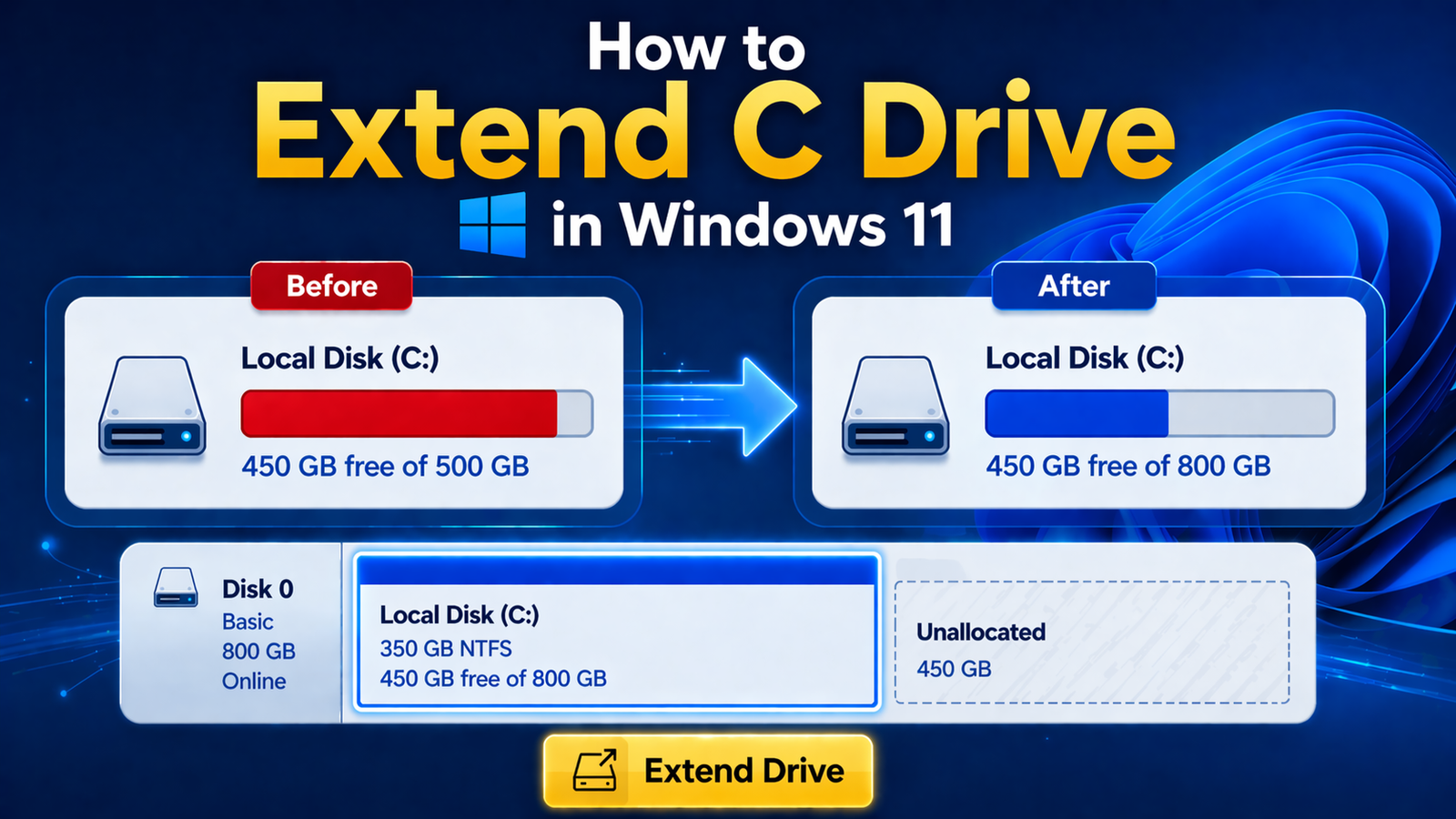
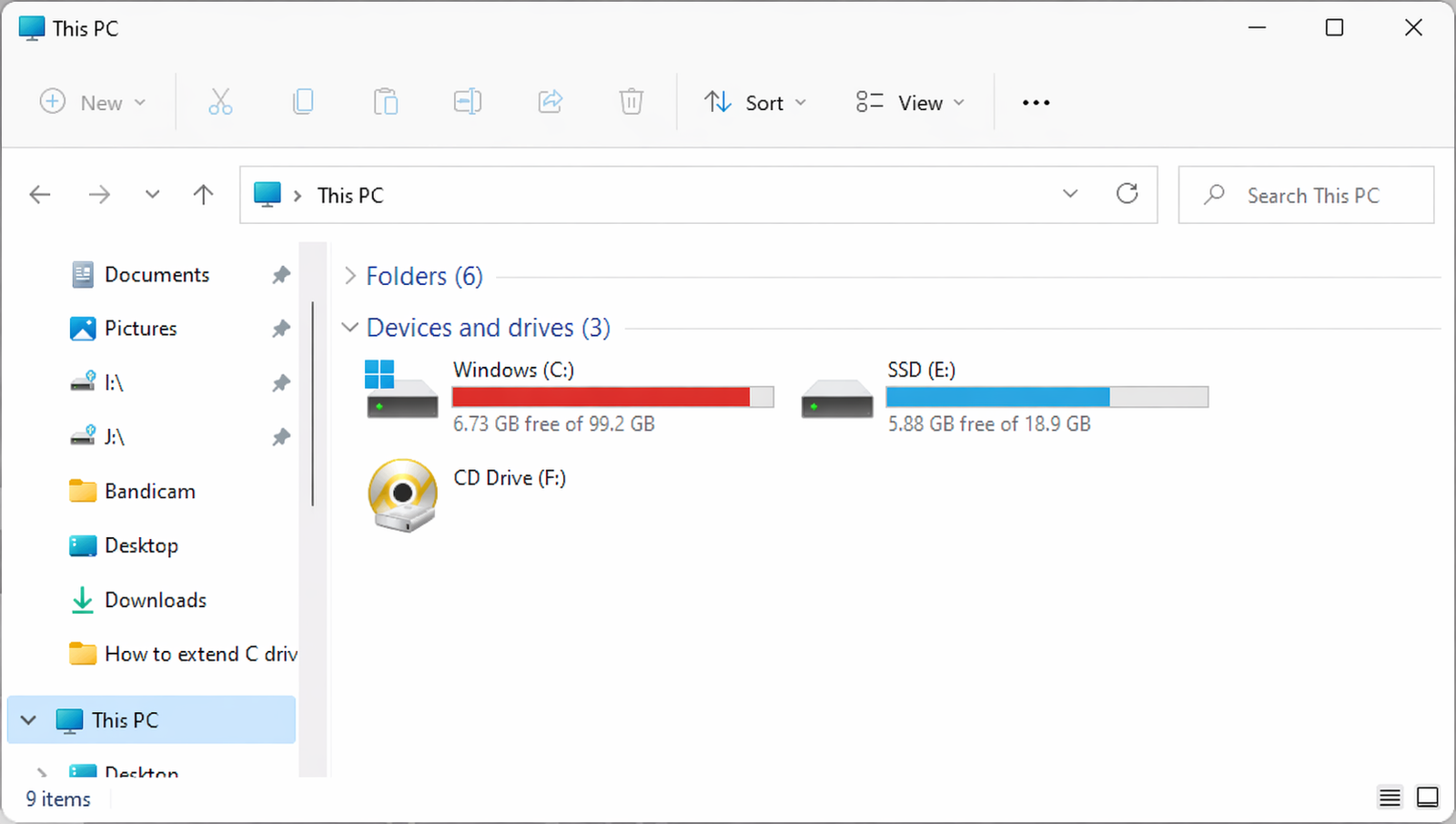
When your system storage begins to fill up it’s usually the C drive that gets affected first. If you don’t extend C drive in time, your computer may slow down take longer to boot or show frequent low storage warnings.
A full C drive can also create issues when installing software or updating Windows. While deleting files is one option it’s not always practical if the data is important. In such cases the best approach is to extend C drive and increase available space without removing files.
Before You Start: Important Things to Know
Before you extend C drive it’s recommended to use a reliable partition management tool like MiniTool Partition Wizard Free Edition.
If you haven’t installed it yet, follow this guide:
Make sure the software is installed on your system before proceeding. Once installed you can follow the steps below to extend C drive safely.
Methods to Extend C Drive
There are multiple ways to extend C drive without losing data:
- Using third party disk management software.
- Using Windows Disk Management.
- Using Command Prompt (CMD).
- Using DiskPart.
In this guide, we’ll focus on the easiest and most effective method using MiniTool Partition Wizard.
Warning: Always back up important files before making any changes to disk partitions.
How to Extend C Drive Using MiniTool Partition Wizard
If your C drive is full you can extend C drive by taking unused space from another partition such as the E drive. For example if your E drive has 6GB of free space you can allocate 5GB of it to extend C drive. The amount depends on how much free space is available on your system.
Step 1: Open Minitool Partition Wizard
Note: Make sure to close all running applications before starting.
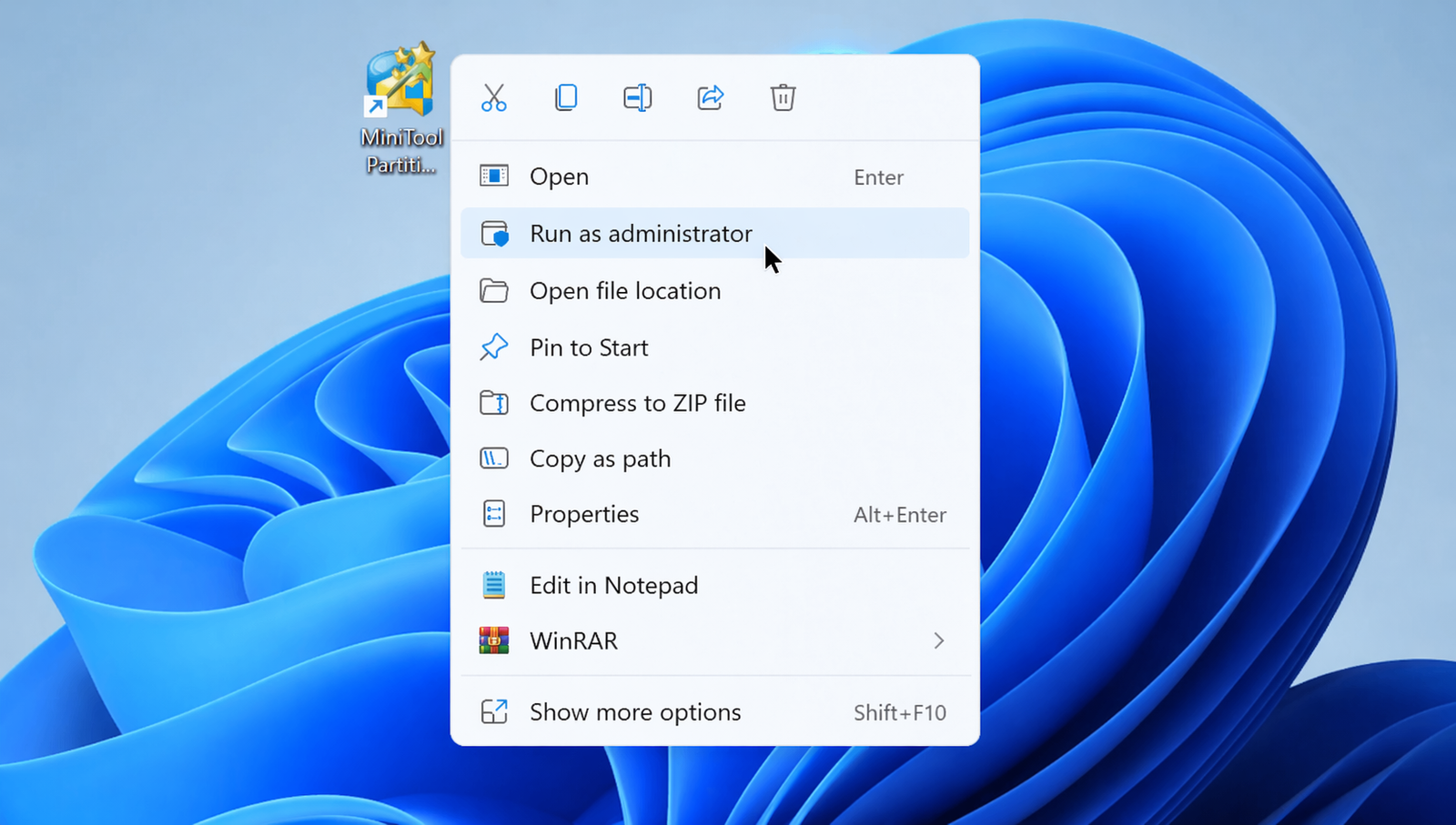
Run MiniTool Partition Wizard as Administrator
(Right click → “Run as administrator”)
Step 2: Extend C Drive Partition
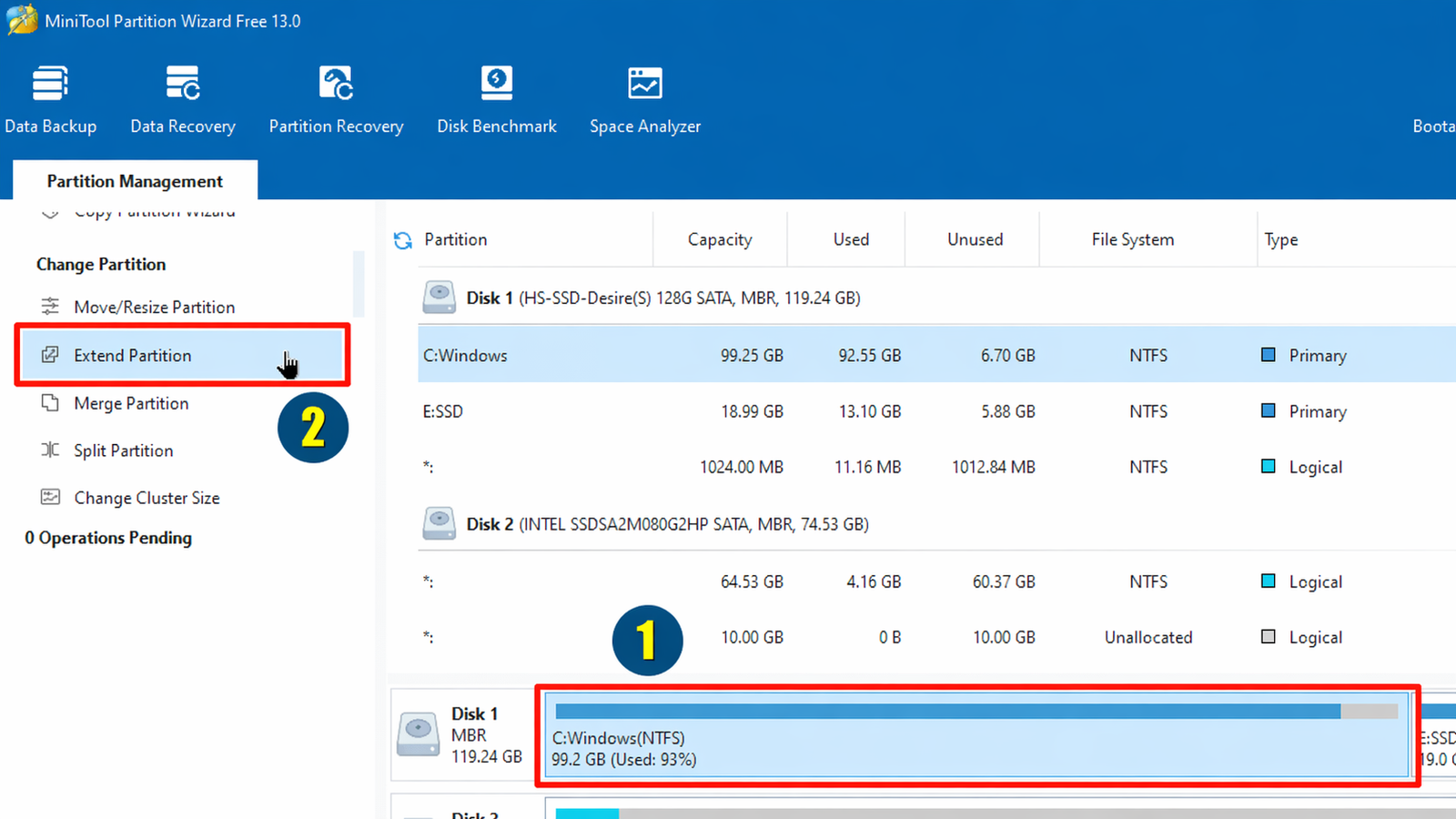
- Select C: Drive (Windows Partition) from the bottom section.
- Then click “Extend Partition” option in the left sidebar
Step 3: Select the partition you want to take space from
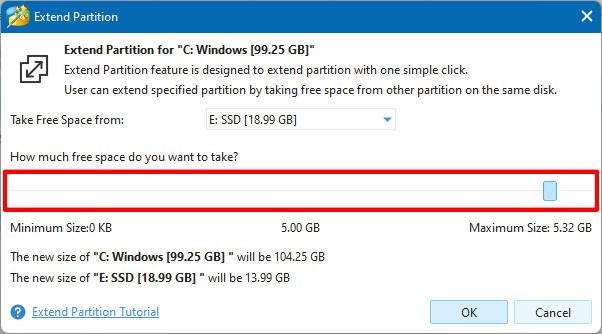
A new window will appear where you can:
Choose a partition with available free space.
In my case, I’m selecting the E: drive, but you can choose any drive that has enough free space.
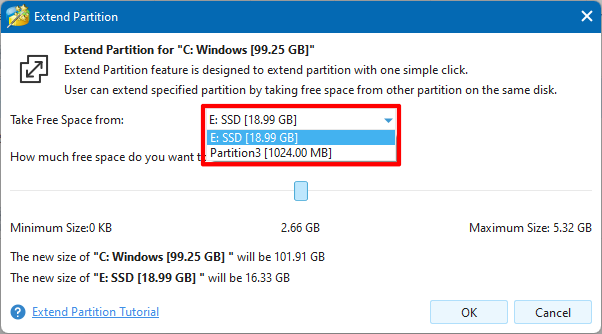
You can Drag This and take how much space you want.
You can drag this button from right in my case I’ve only 5.32 GB and I’m choosing 5.00 GB from E: drive after that 5GB space will be added to C: drive and our Current E:drive is 18.99 GB – 5GB it will be 13.99 GB.
Click OK when done.
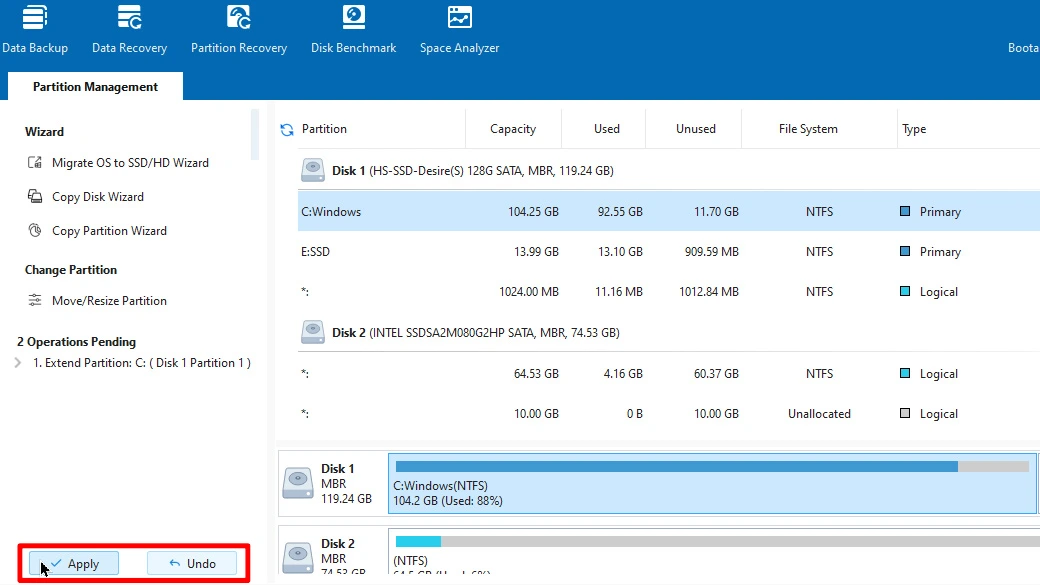
You’ll now see the C drive expanded in the preview (but not applied yet).
Step 4: Apply the Changes
Click the “Apply” button in the bottom left corner to confirm the changes.
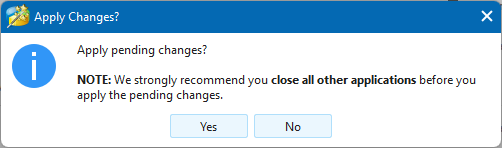
When the confirmation window appears click the “Yes” button to apply the changes.
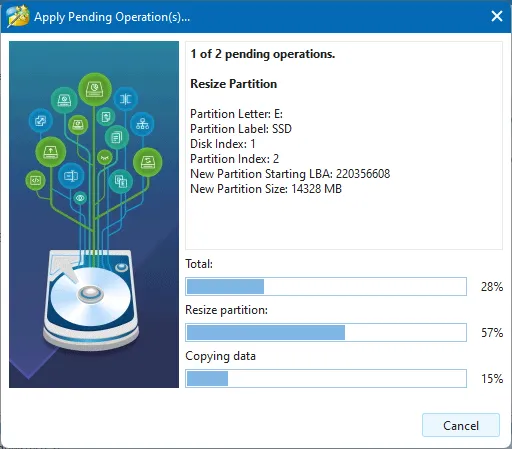
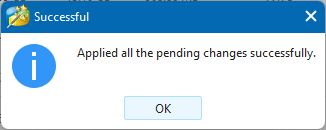
Now, wait until the process completes 100%.
Congratulations! Your C drive has been successfully extended.
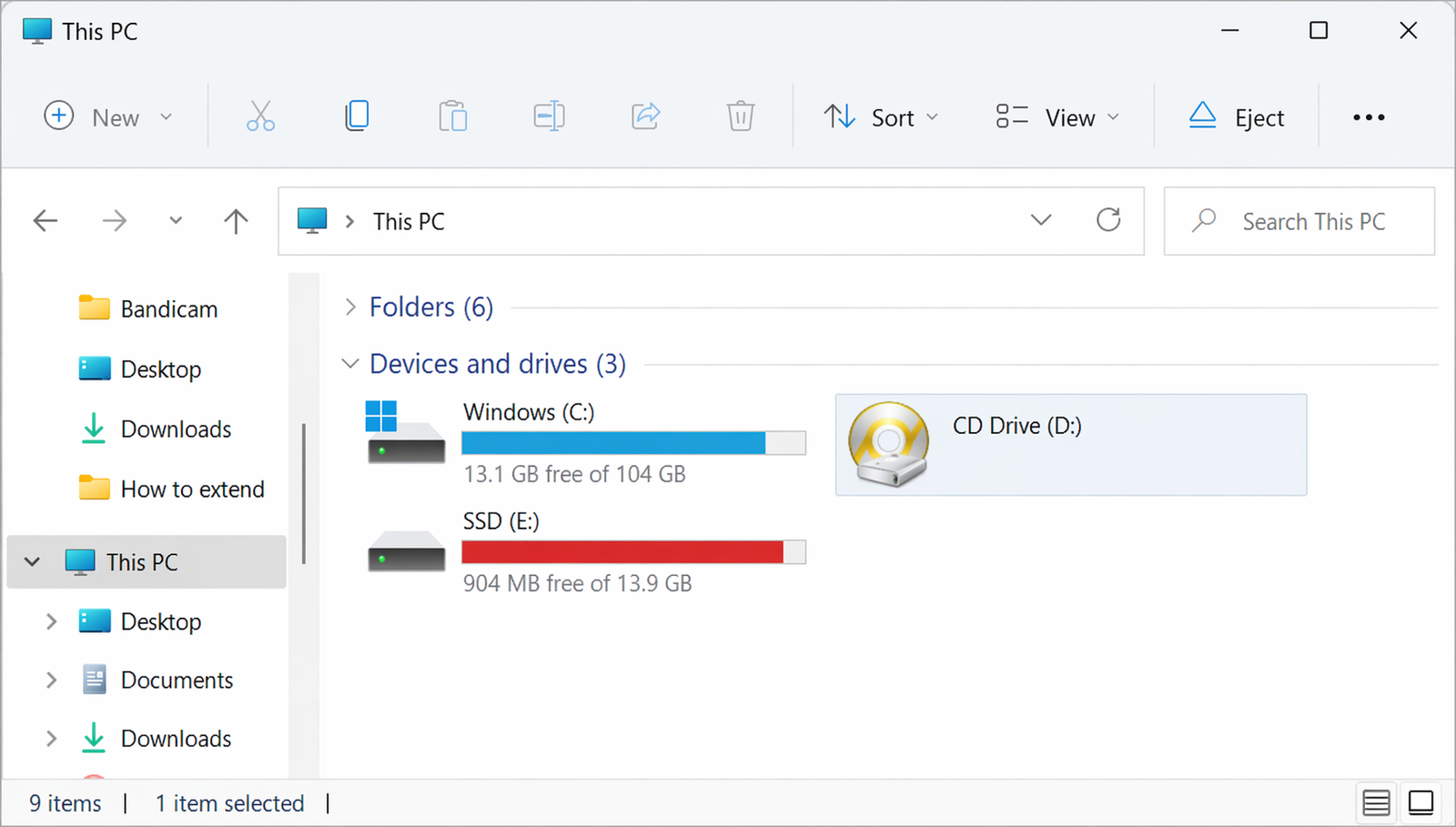
You can now see the extra space that was added from the other partition.
Why MiniTool Partition Wizard Is Better Than Disk Management
There are few limitations in Disk Management, listed below.
| Feature | Disk Management | MiniTool Partition Wizard |
|---|---|---|
| Extend C drive without unallocated space | ❌ Not possible | ✅ Yes |
| Move partitions | ❌ No | ✅ Yes |
| Works when “Extend Volume” is greyed out | ❌ No | ✅ Yes |
| Extend system partition while Windows is running | ❌ Rare | ✅ Yes |
| Beginner friendly UI | ❌ Not really | ✅ Yes |
Common Issues When Using Disk Management
If you want to extend your C drive using the Windows Disk Management tool, you might run into these common issues:
- The “Extend Volume” option being greyed out
- Unable to extend the C drive even when unallocated space is available
- Partition not formatted as NTFS
- Recovery partition blocking the process
In this guide, we’ll show you the correct method to extend your C drive, even if you’re facing any of these issues. This Method will work reliably and resolve all of these problems.
How to Extend other Partitions
The same method used to extend C drive can also be applied to other partitions. Simply select the desired partition and follow the same steps to increase its size.
Other Hard Disk Utility Tools
If you prefer other software or need different features here are some alternatives:
EaseUS Partition Master
This is a well known partition management tool available in both free and premium versions. It allows you to extend C drive, resize partitions, move data and merge partitions easily even system partitions. You can also transfer space from one drive to another without losing data. It includes a step by step wizard which makes the process simple for beginners. Download from the EaseUS Official site.
AOMEI Partition Assistant
AOMEI Partition Assistant is another reliable option with an easy to use interface. The free version offers features like resizing, moving, extending, shrinking and merging partitions without affecting your data. It also includes extra tools such as disk cloning and converting between MBR and GPT. Download from the AOMEI’s Official site.
Windows Disk Management
This is the default partition tool that comes with Windows. It allows you to perform basic tasks like shrinking and extending partitions. However, it has some limitations. You can only extend C drive if there is unallocated space directly next to it, and the partition must be in NTFS format. It also doesn’t support moving partitions which is why many users rely on third party tools instead.
Frequently Asked Questions
In Disk Management, the option becomes greyed out when there is no unallocated space next to the C drive, or a recovery partition is blocking it. Disk Management only extends NTFS partitions and requires the free space to be adjacent, which is why many users cannot extend their C drive using the built-in tool.
Yes. Using tools like MiniTool Partition Wizard Free Edition, you can safely extend the C drive without deleting or formatting any partitions. Just make sure to follow the steps and apply the changes carefully.
Disk Management requires unallocated space right next to the C drive, but MiniTool Partition Wizard does not. It can take free space from any other partition and directly add it to the C drive.
Yes. MiniTool is a trusted third-party partition management software that millions of Windows users rely on. As long as you download it from the official site and follow instructions properly, it’s safe.
Sometimes, yes. If the system partition (C drive) is being modified, MiniTool may ask for a reboot to complete the operation. This is completely normal.
Conclusion
Running out of space on your system drive can affect your computer’s performance, but fixing it doesn’t have to be complicated. With the right tool you can easily expand your C drive and keep your system running smoothly.
MiniTool Partition Wizard makes the process straightforward even if Windows Disk Management isn’t working or the “Extend Volume” option is unavailable. By carefully following the steps, you can safely increase your storage without risking your data.
You can check out our other softwares @Check_Now.